1. How to Transfer Contacts from iPhone to iPad with iCloud?
If you are an iCloud user and you like the way it works, you can sync your iPhone contacts to your iPad. This can be done by following the steps outlined below:
- Step 1: Make sure that your iPhone contacts have been synced to iCloud. Open Settings on your iPhone, tap [your name] and then click iCloud. For iOS 10.2 and below: Open Settings and then tap iCloud.
- Step 2: Toggle on Contacts and then tap Merge. Your iPhone contacts should sync to iCloud.
- Step 3: Do the same operation on your iPad. After you tap Merge and wait for a few seconds, you can go to Contacts app, or go to Phone app then check Contacts, you will find that the contacts have been transferred to iPad from iPhone.


2. Transfer Contacts from iPhone to iPad without iCloud
It is not mandatory to have iCloud so that you can transfer iPhone contacts to iPad. Below, we will show you 2 ways you can sync contacts from iPhone to iPad without iCloud.
Transfer Contacts from iPhone to iPad by AirDrop
For AirDrop to work, it needs both Bluetooth and Wi-Fi. Therefore, before you start the transfer process, you will need to make sure that both Bluetooth and Wi-Fi are working on both of your iPhone and iPad. To transfer your contacts from your iPhone to iPad using AirDrop, follow the steps below:
- Step 1: Generally, AirDrop is turned on in default. You can go to Settings > General > AirDrop to confirm that Contacts Only or Everyone is checked.
- Step 2: Turn on AirDrop on both devices. Make sure that both Bluetooth and WLAN are turned on.
- Step 3: Open the Contacts application on your iPhone and select the contact you would like to transfer to your iPad. Tap Share Contact.
- Step 4: Tap AirDrop and then select your iPad as the target device.
- Step 5: A notification should appear on your iPad. Click the notification to enable the transfer.

AirDrop is a valid method for transferring contacts from iPhone to iPad. The problem is that you only get to transfer a single contact at a time. If you need to transfer multiple contacts from iPhone to iPad, the method is time-consuming. Whether there is a method to transfer all contacts from iPhone to iPad? The answer is YES and you can read on to find answer.
Sponsor Ads: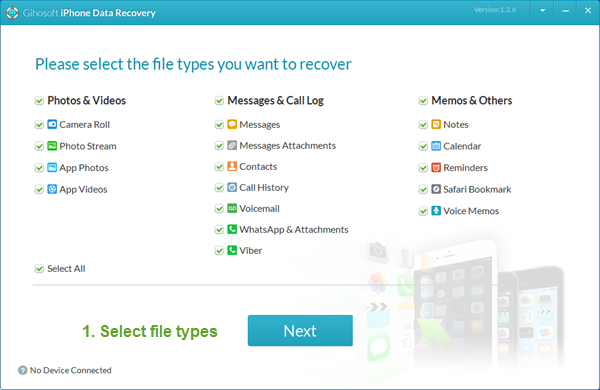
Gihosoft Free iPhone Data Recovery is a professional iPhone Data Recovery software to get back all your lost text message, photo, video, call history, note, contact and more from iPhone/iPad/iPod Touch.
Gihosoft Android data recovery Free is a super awesome software specialized in Android file recovery. With this program, you are able to recover deleted photos, music, videos, messages, contacts, call logs, WhatsApp messages, Viber chat history and more from Samsung, Huawei, LG, HTC, Motorola, Google, Oneplus, Sony, Lenovo, ZTE and other Android devices directly. Meanwhile, this Android data recovery software is available for both Windows and Mac platforms.


No comments:
Post a Comment